
Settings reference — every field
This page documents every field on the Easy Invoice settings page. The settings live under WordPress Admin → Easy Invoice → Settings. Use this page as a lookup when you're not sure what a field does.
New to Easy Invoice? Start with Quick start for the full setup walkthrough. Come back here only when you need to know exactly what one specific field controls.
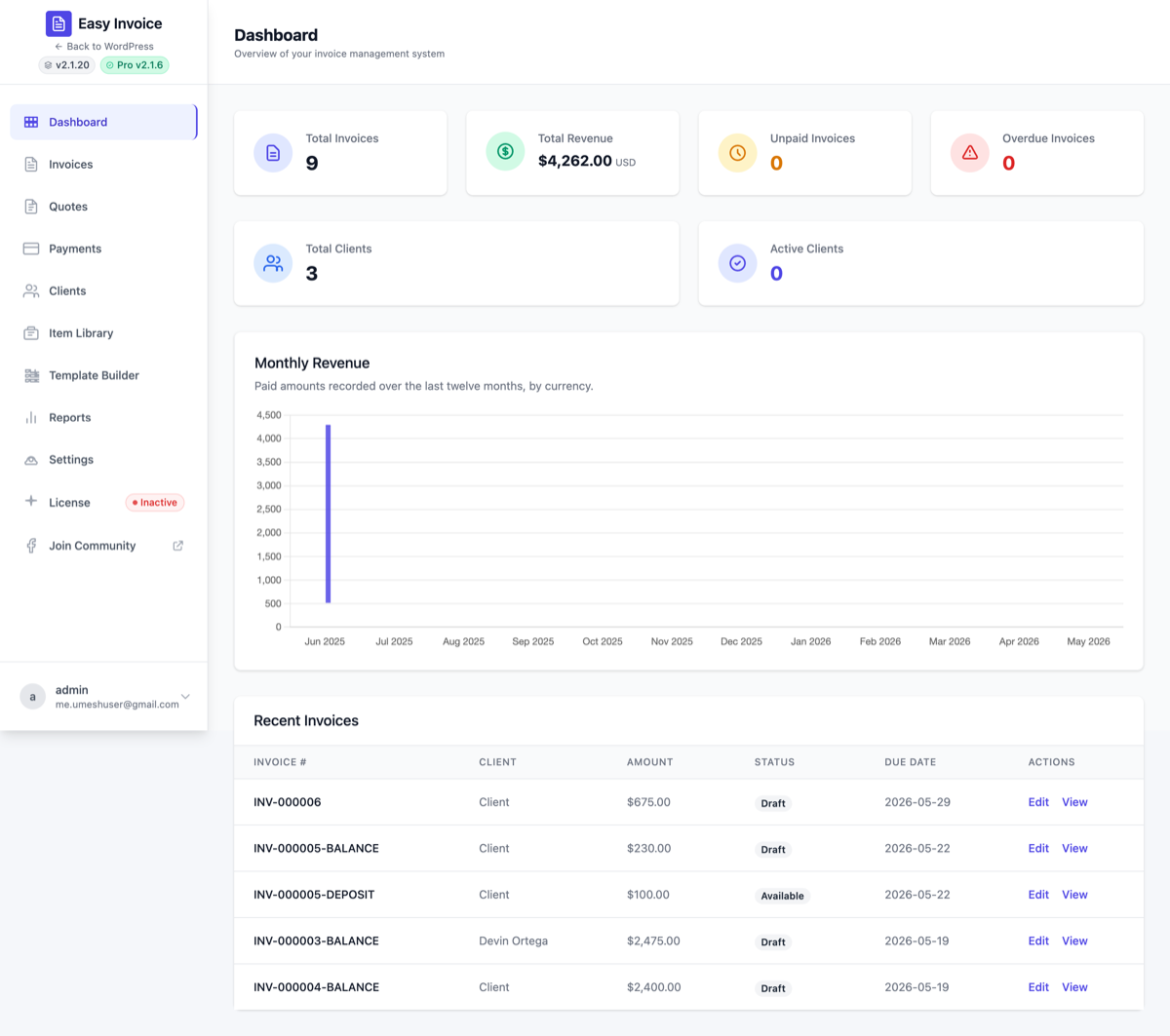
The left sidebar inside Easy Invoice → Settings has these sections (in this order):
- Company Information
- Invoice Settings
- Quote Settings
- Currency Settings
- Tax Settings
- Payment Methods — see the dedicated Payment gateways page for credentials per gateway
- Email Settings — see also the dedicated Email & notifications page
- Text Settings
- Advanced Settings
When you finish a section, click Save Changes at the top right of the settings page.
1. Company Information
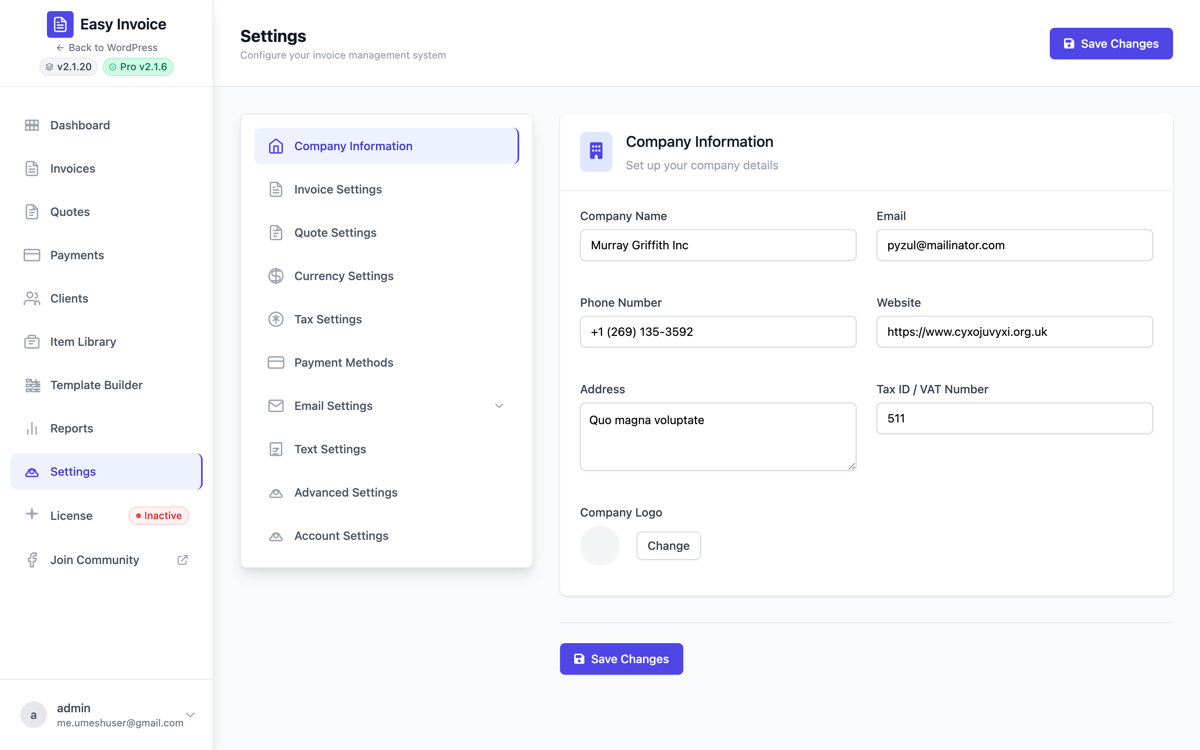
These details appear on every invoice and quote PDF, in email signatures, and on the public invoice page.
| Field | Type | What it does |
|---|---|---|
| Company Name | Text | Your business name. Appears as the seller on every invoice and quote. |
| Your business contact email — printed on invoices and used as a reply target. | ||
| Phone Number | Phone | Optional. Printed on invoices/quotes. |
| Website | URL | Optional. Printed on invoices/quotes. |
| Address | Textarea | Multi-line business address printed on documents. |
| Tax ID / VAT Number | Text | Your business tax / VAT / GST registration number printed on invoices. |
| Company Logo | Image upload | Logo shown at the top of every invoice/quote and (optionally) in client emails. |
Tip for new users: Even if you skip everything else, fill in Company Name, Email, Address, and upload a Logo — these four make your documents look professional immediately.
2. Invoice Settings
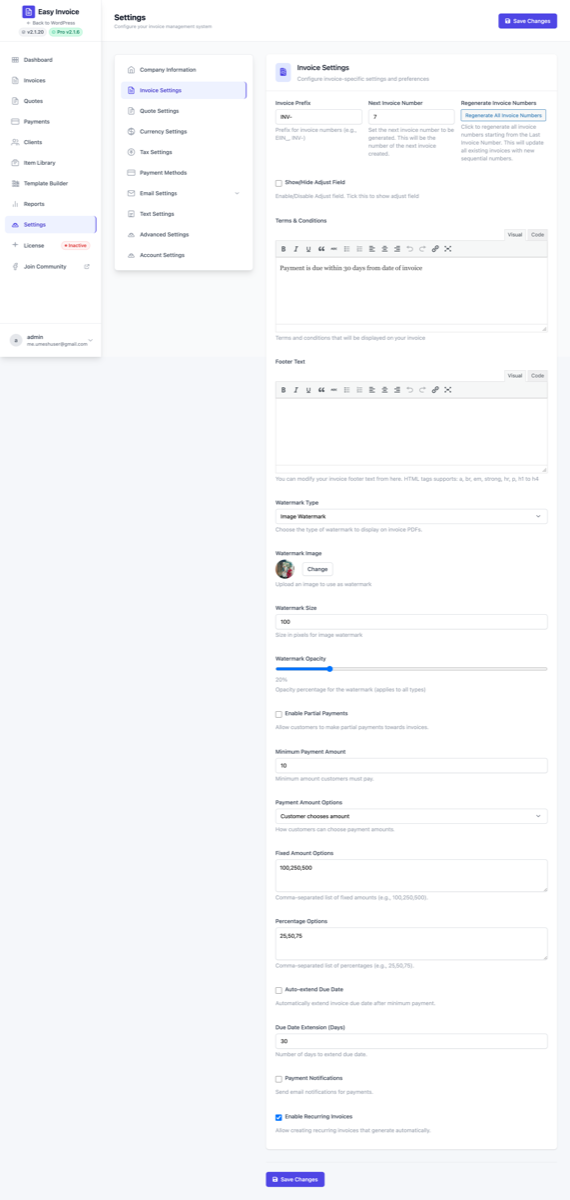
Controls invoice numbering, terms, footer text, and several Pro toggles.
Numbering
| Field | Default | What it does |
|---|---|---|
| Invoice Prefix | EIIN_ | The prefix added to every invoice number (e.g. EIIN_0001). Change to anything you like: INV-, 2026-, ACME-, etc. |
| Next Invoice Number | 1 | The next number that will be assigned when you create an invoice. Increment manually if you're switching from another system mid-year. |
| Regenerate All Invoice Numbers | button | Re-numbers every existing invoice sequentially starting from "Next Invoice Number". ⚠️ Use with care — invoice numbers are legal records in many countries. |
Layout / behaviour
| Field | Default | What it does |
|---|---|---|
| Show / Hide Adjust Field | Enabled | When checked, each line item shows an Adjust (%) field that lets you mark a single item up or down by a percentage without changing its base price. |
| Terms & Conditions | "Payment is due within 30 days from date of invoice" | Rich-text editor. Printed at the bottom of every invoice PDF. Supports a, br, em, strong, hr, p, h1–h4 tags. |
| Footer Text | empty | Rich-text editor. Printed at the very bottom of the invoice (under terms). |
Pro-only invoice settings
The following appear in the Invoice section only when Easy Invoice Pro is active:
| Field | Source | What it does |
|---|---|---|
| Enable Recurring Invoices PRO | Pro | Master switch for the recurring engine. See Recurring & subscriptions. |
| Enable Deposit Invoices PRO | Pro | Lets you split any invoice into a deposit + balance portion. |
| Deposit Invoice Numbering PRO | Pro | suffix (e.g. INV-001-1), prefix (D-INV-001), or separate (its own counter). |
| Enable Partial Payments PRO | Pro | Allow clients to pay in installments. Reveals the fields below. |
| Minimum Payment Amount PRO | Pro | Smallest amount a client can pay per installment. |
| Payment Amount Options PRO | Pro | Customer chooses amount / Fixed amount options / Percentage options. |
| Fixed Amount Options PRO | Pro | Comma-separated list (e.g. 100,250,500) shown as preset buttons. Visible only when "Fixed amount options" is chosen. |
| Percentage Options PRO | Pro | Comma-separated list (e.g. 25,50,75) shown as percentage presets. |
| Auto-extend Due Date PRO | Pro | If a client pays the minimum on time, push the remaining balance's due date forward automatically. |
| Due Date Extension (Days) PRO | Pro | Number of days to add when auto-extending. Default 30. |
| Payment Notifications PRO | Pro | Email both client and admin every time a partial payment is recorded. |
| Watermark Type PRO | Pro | Text / Image / Status (auto-uses the invoice status text). |
| Watermark Text PRO | Pro | Visible when type = Text. E.g. CONFIDENTIAL, COPY, DUPLICATE. |
| Watermark Color PRO | Pro | Color picker. Default #FF0000. |
| Watermark Image PRO | Pro | Visible when type = Image. Upload a transparent PNG. |
| Watermark Size PRO | Pro | Pixel size for image watermark (10–500). |
| Watermark Opacity PRO | Pro | 1–100%. Default 20%. |
Pro upgrade? All of the rows above only render after the Pro plugin is activated. See the Pro feature catalog or upgrade to Easy Invoice Pro.
3. Quote Settings
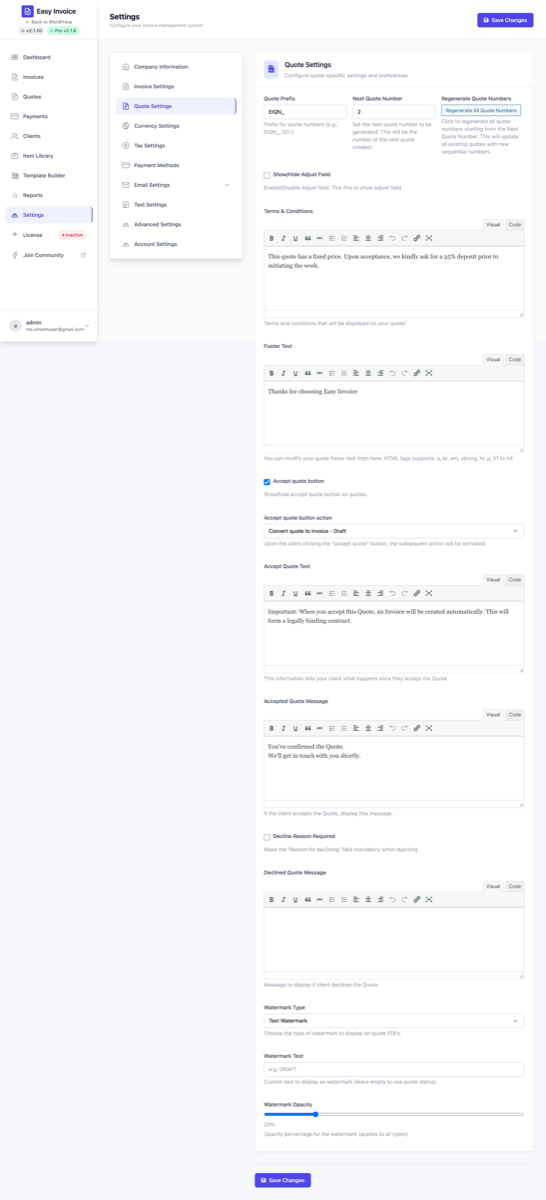
Mirrors the invoice section but for quotes / estimates.
Numbering
| Field | Default | What it does |
|---|---|---|
| Quote Prefix | EIQN_ | Prefix for quote numbers. Change to QT-, EST-, etc. |
| Next Quote Number | 1 | Next number assigned when you create a quote. |
| Regenerate All Quote Numbers | button | Re-numbers every existing quote sequentially starting from "Next Quote Number". |
Content
| Field | Default | What it does |
|---|---|---|
| Show / Hide Adjust Field | Enabled | When checked, quote line items show an Adjust (%) field. |
| Terms & Conditions | "This quote has a fixed price. Upon acceptance, we kindly ask for a 25% deposit prior to initiating the work." | Rich-text editor — printed on quote PDFs. |
| Footer Text | "Thanks for choosing Easy Invoice" | Rich-text editor printed below terms. |
Accept / decline flow
These control what happens when a client clicks Accept or Decline on a public quote page.
| Field | Default | What it does |
|---|---|---|
| Accept quote button | Enabled | Show or hide the Accept button on the public quote page. |
| Accept quote button action | Convert quote to invoice – Draft | What happens when the client clicks Accept. Options: • Convert quote to invoice – Draft (silent) • Convert quote to invoice – Available (publish, no email) • Convert quote to invoice and send to client – Available (publish + auto-email) • Create new invoice, keep quote as-is – Draft • Create new invoice and send to client, keep quote as-is • Do nothing |
| Accept Quote Text | "Important: When you accept this Quote, an Invoice will be created automatically..." | Rich-text editor. Shown above the Accept button as a confirmation message. |
| Accepted Quote Message | "You've confirmed the Quote..." | Message shown to the client immediately after they click Accept. |
| Decline Reason Required | Off | When on, the client cannot decline without entering a reason. |
| Declined Quote Message | empty | Message shown after a successful decline. |
Quote watermarks (Pro)
Same set of seven fields as Invoice watermarks above, prefixed for quotes: type, text, color, image, size, opacity. PRO
4. Currency Settings
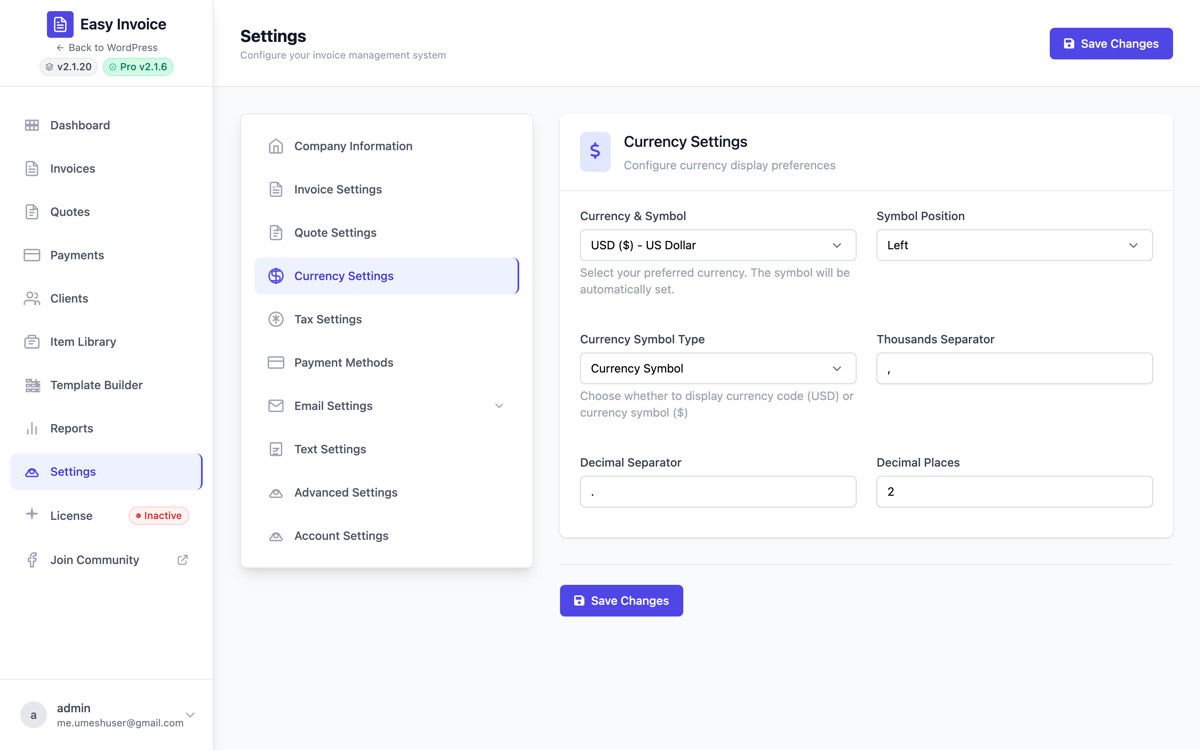
| Field | Default | What it does |
|---|---|---|
| Currency & Symbol | USD | The currency code from the ISO 4217 list — Easy Invoice ships 150+ options. Symbol updates automatically. |
| Symbol Position | Left | Where to print the symbol relative to the amount: Left, Right, Left with space, Right with space. |
| Currency Symbol Type | Currency Symbol | Print the symbol ($, €) or the code (USD, EUR). |
| Thousands Separator | , | Character between thousands. Use . for many European locales. |
| Decimal Separator | . | Character between integer and decimal portions. |
| Decimal Places | 2 | 0–4 digits after the decimal point. |
Note: Per-invoice currency override is also available on the Payments tab inside the invoice builder.
5. Tax Settings
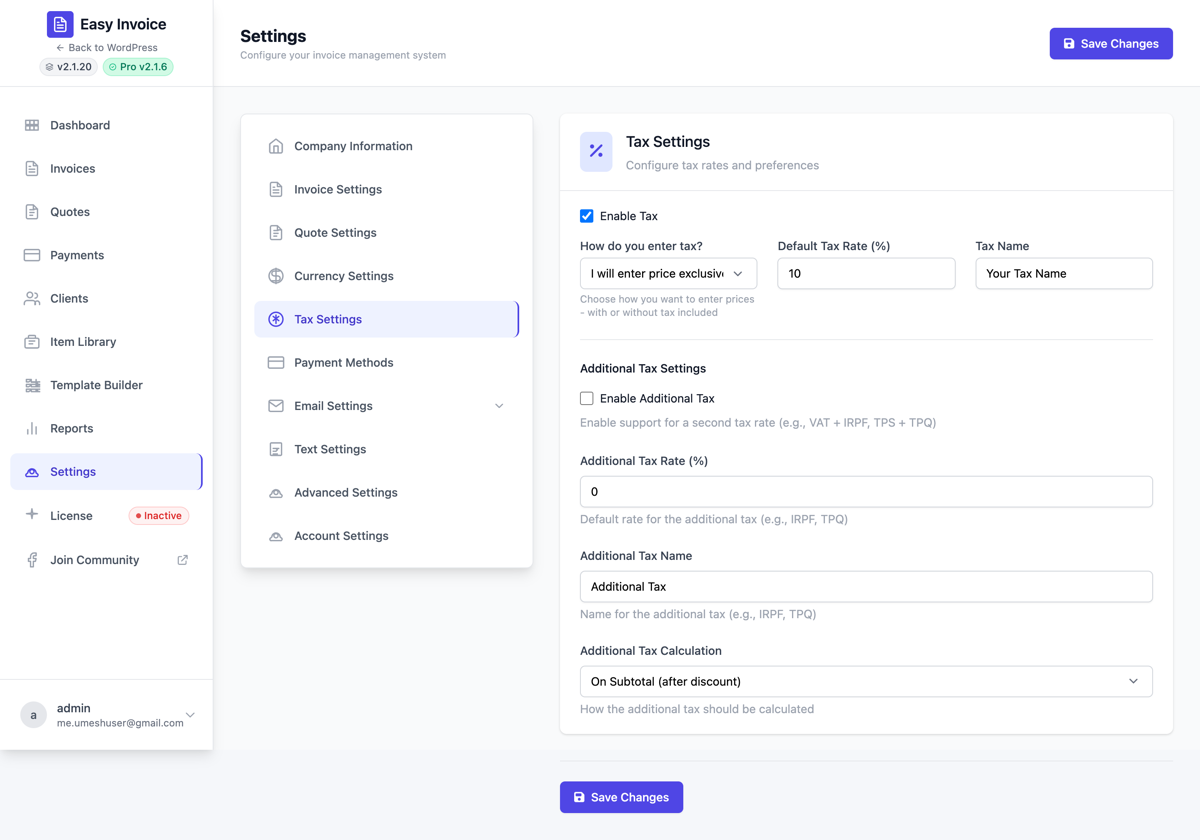
| Field | Default | What it does |
|---|---|---|
| Enable Tax | Off | Master switch. When off, no tax fields show on invoices/quotes. |
| How do you enter tax? | exclusive | • Inclusive — the price you type includes tax (Easy Invoice extracts the tax portion). • Exclusive — tax is added on top of the price you type. |
| Default Tax Rate (%) | 0 | Used as the starting tax rate on every new invoice. Per-invoice override available. |
| Tax Name | Tax | Label printed on the invoice — change to VAT, GST, IVA, Sales Tax, etc. |
Pro additional tax (second tax line) PRO
Some jurisdictions require two taxes (e.g. Canadian GST + PST). Pro adds:
| Field PRO | Default | What it does |
|---|---|---|
| Enable Additional Tax | Off | Adds a second tax row on invoices and quotes. |
| Additional Tax Rate (%) | 0 | The rate for the second tax. |
| Additional Tax Name | Additional Tax | Label for the second tax row. |
| Additional Tax Calculation | on_subtotal | • On subtotal — second tax calculated on the pre-tax amount. • On total (cascading) — second tax calculated on (subtotal + first tax). |
6. Payment Methods
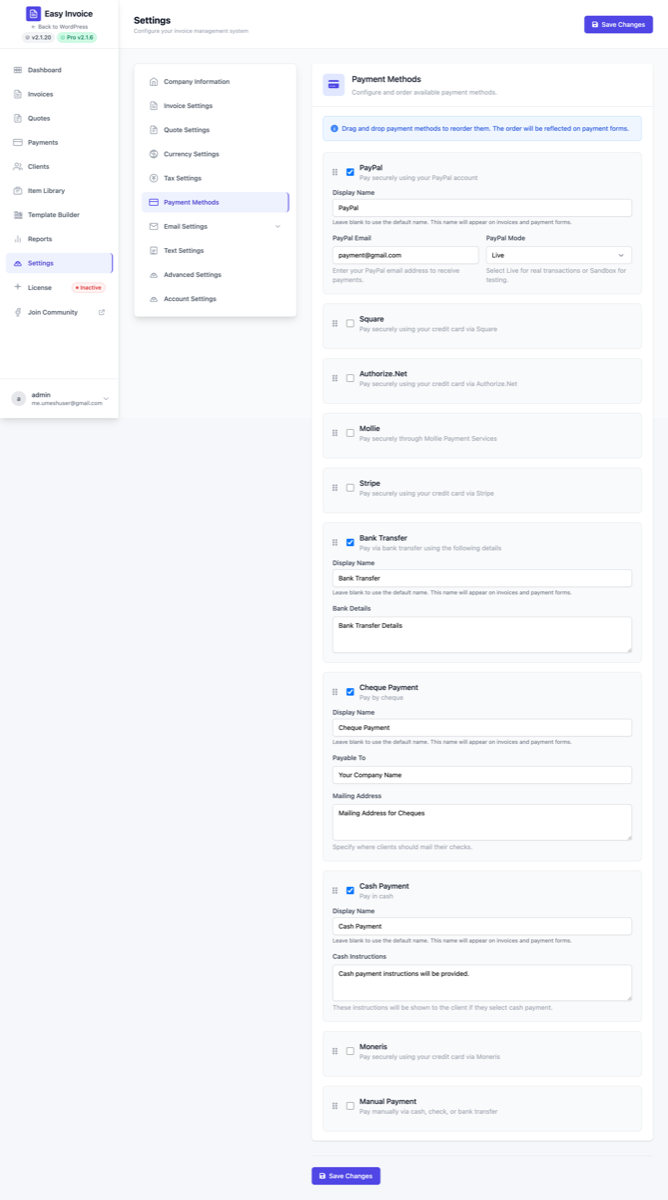
The Payment tab is a list of every gateway your store can use. Click a gateway row to expand its credentials.
Free
- Manual (record offline payments like cash, cheque, bank transfer)
- PayPal Standard
Pro PRO
- Stripe — cards + Apple/Google Pay
- Square
- Authorize.Net
- Mollie (European methods: iDEAL, Bancontact, SEPA, etc.)
- Bank Transfer (display bank details only)
- Cheque (cheque mailing instructions)
- Cash
- Moneris (Canada)
Above every credential row, the Payment Methods section gives you these admin controls:
- Enable / disable (per gateway, the checkbox at the top of each row)
- Reorder gateways (drag-and-drop) — controls the order on the public invoice
- Display name (text field) — the label clients see (e.g. you can rename "Stripe" to "Credit card")
For credential fields and step-by-step setup per gateway, see Payment gateways.
7. Email Settings
The Email section has 4 sub-pages (Pro adds a 5th):
- General — Sender, reply-to, BCC, logo, footer text, Send Test Email button
- Invoice Available — Email sent when you mark an invoice as Available
- Quote Available — Email sent when you publish a quote
- Payment Received — Confirmation email after a payment is recorded
- Payment Reminder PRO — Automatic reminders before/after due date
7.1 General email settings
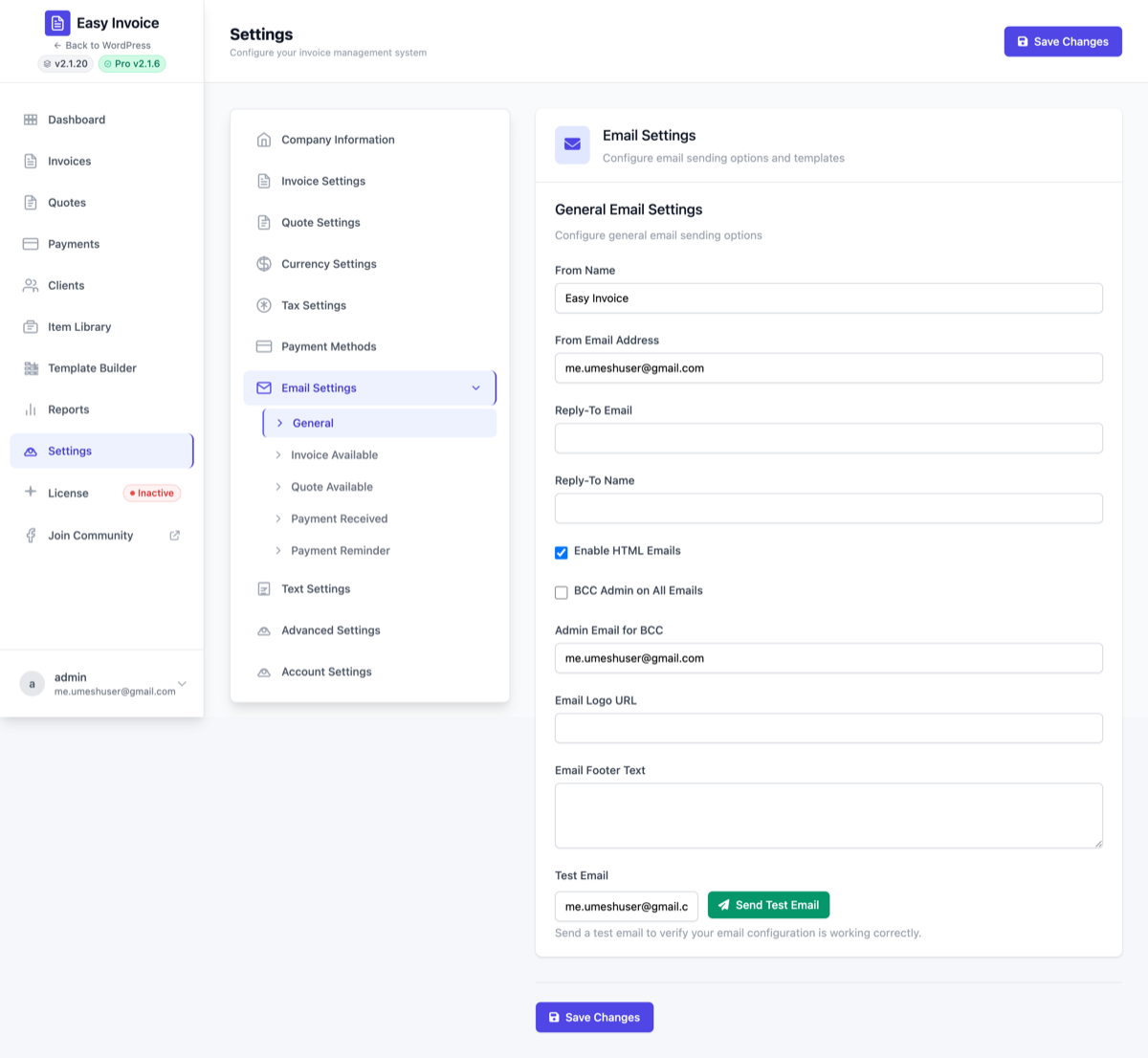
| Field | Default | What it does |
|---|---|---|
| From Name | Site name | Display name on outgoing emails (e.g. Acme Co.). |
| From Email Address | Site admin email | The From: address. Use a real address on your domain or SPF/DKIM will mark it as spam. |
| Reply-To Email | empty | Where replies go (e.g. [email protected]). If empty, replies go to the From address. |
| Reply-To Name | empty | Name on the Reply-To header. |
| Enable HTML Emails | Yes | Use styled HTML emails. Turn off for plain-text only. |
| BCC Admin on All Emails | No | When on, every client email is also BCC'd to the address below. |
| Admin Email for BCC | Site admin email | The BCC recipient. |
| Email Logo URL | empty | Logo shown at the top of HTML emails. Use a publicly reachable URL. |
| Email Footer Text | empty | Plain text or HTML printed at the bottom of every email. |
| Test Email | button | Type any address and click Send Test Email to verify deliverability. |
7.2 Invoice Available email
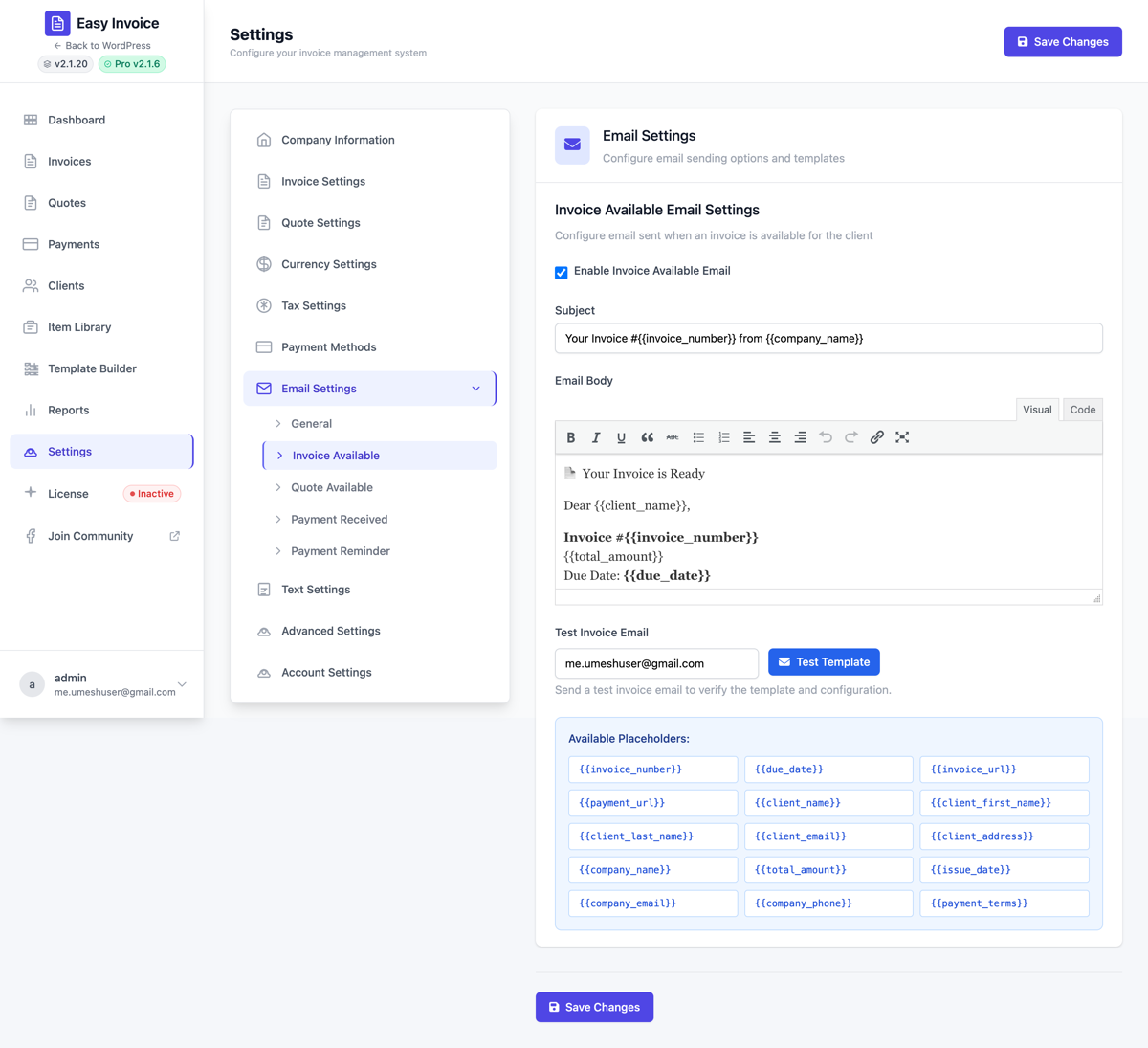
| Field | Default | What it does |
|---|---|---|
| Enable Invoice Available Email | On | Master switch — turn off if you only want to send manually. |
| Subject | Your Invoice #{{invoice_number}} from {{company_name}} | Subject line. Smart tags allowed. |
| Email Body | Full HTML template | Rich-text editor for the email body. |
| Test Invoice Email | button | Sends a test using {{invoice_number}} = TEST-001. |
7.3 Quote Available email
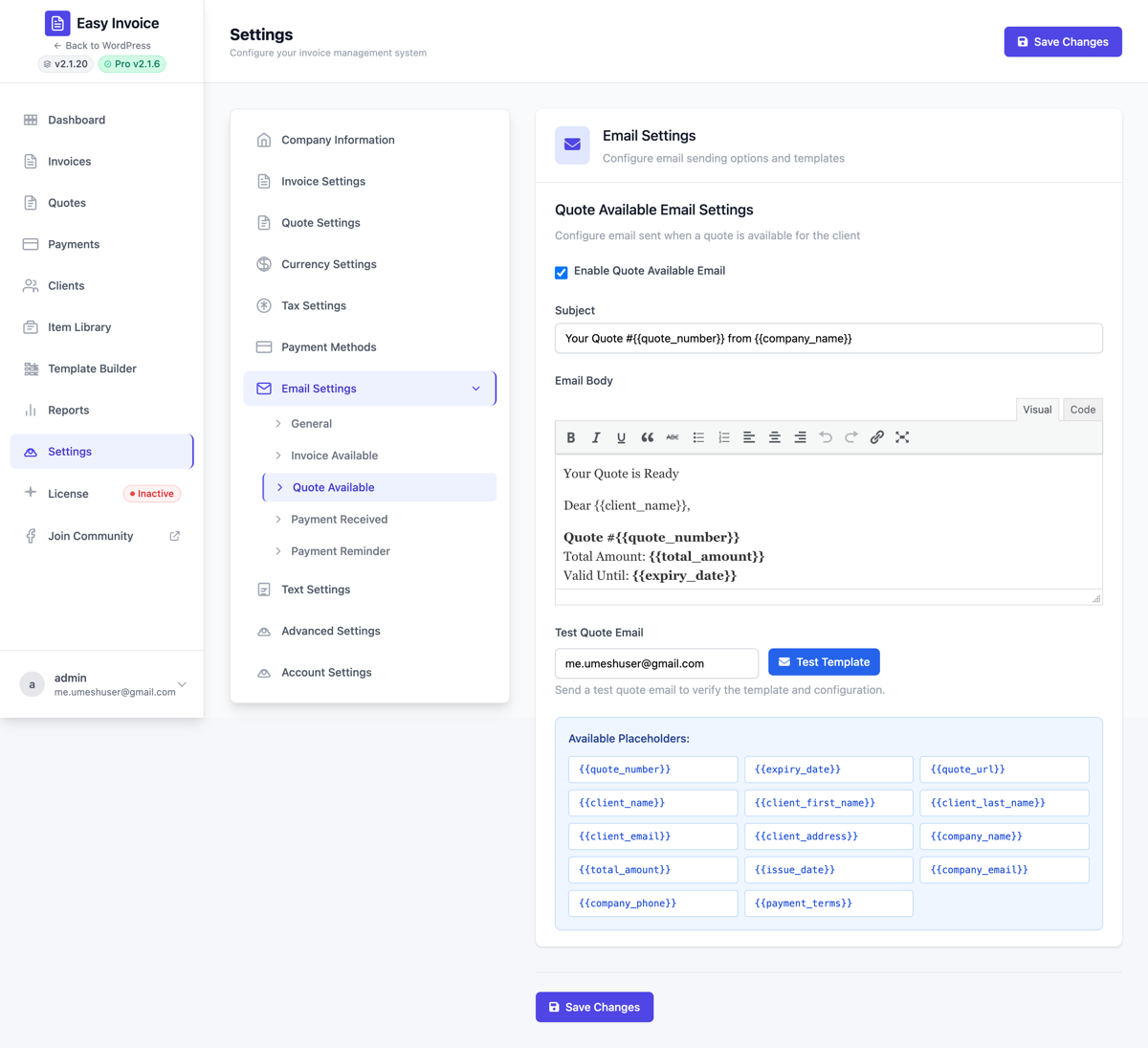
Same shape as Invoice Available but uses {{quote_number}}, {{expiry_date}}.
7.4 Payment Received email
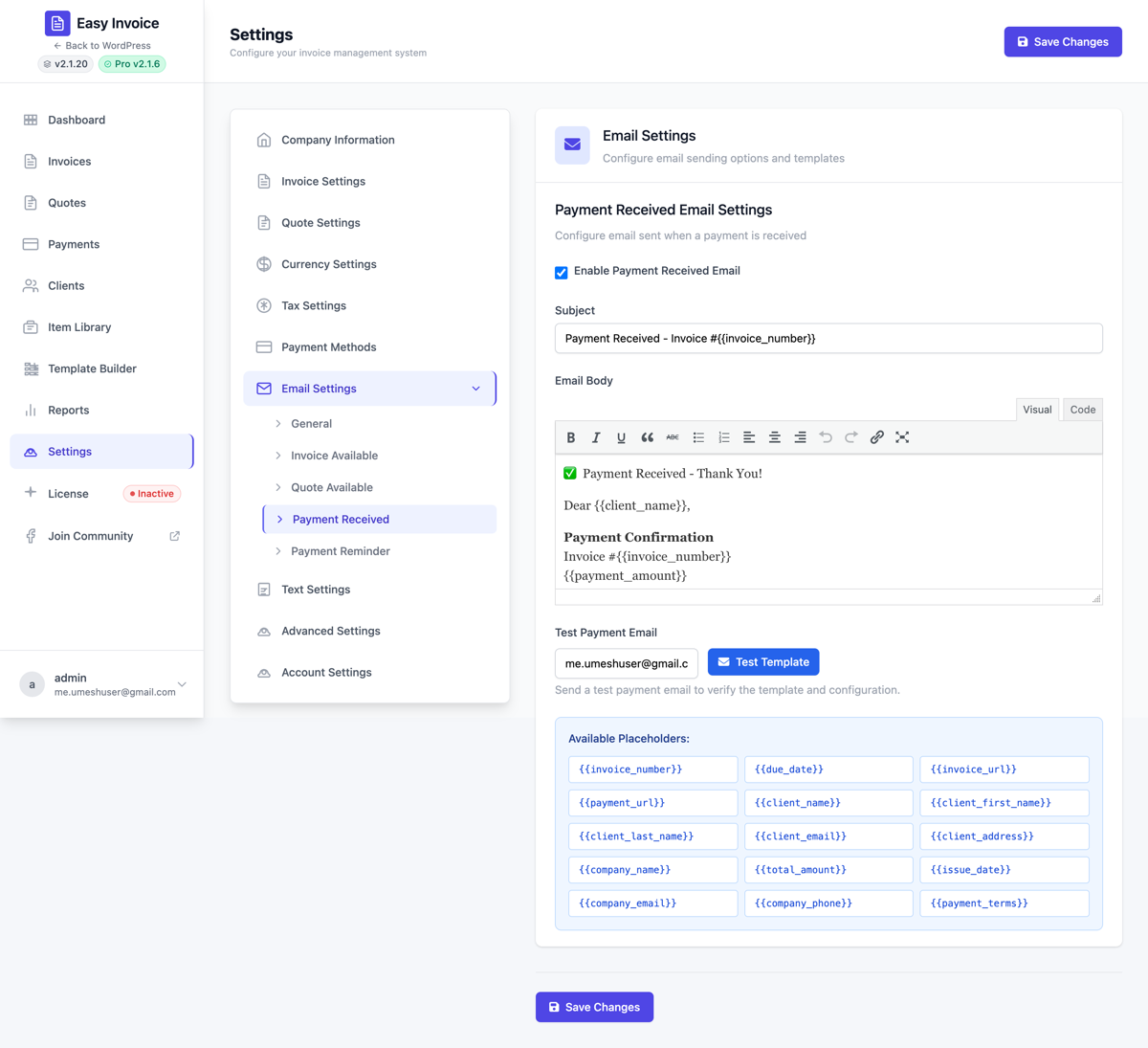
Same shape, with payment-specific smart tags ({{payment_amount}}, {{payment_date}}, {{payment_method}}, {{transaction_id}}).
7.5 Payment Reminder email (Pro)
| Field PRO | Default | What it does |
|---|---|---|
| Enable Payment Reminder | Off | Master switch. |
| When to Send | 7, 3, 1 days after due | Multi-select — pick any combination from 30 days before to 30 days after the due date. |
| For which status? | Unpaid, Overdue | Only send reminders for invoices with one of the selected statuses. |
| Email Subject | A friendly reminder - Invoice #{{invoice_number}} | Reminder subject line. |
| Email Message | Default HTML template | Rich-text editor for the reminder. |
| Test Payment Reminder Email | button | Sends a test reminder using a sample invoice. |
Smart tags
You can use these placeholders in any subject / body:
{{invoice_number}}, {{quote_number}}, {{client_name}}, {{company_name}}, {{company_email}}, {{total_amount}}, {{payment_amount}}, {{due_date}}, {{expiry_date}}, {{payment_date}}, {{payment_method}}, {{transaction_id}}, {{payment_terms}}, {{invoice_url}}, {{quote_url}}.
See the dedicated Email & notifications page for full details.
8. Text Settings
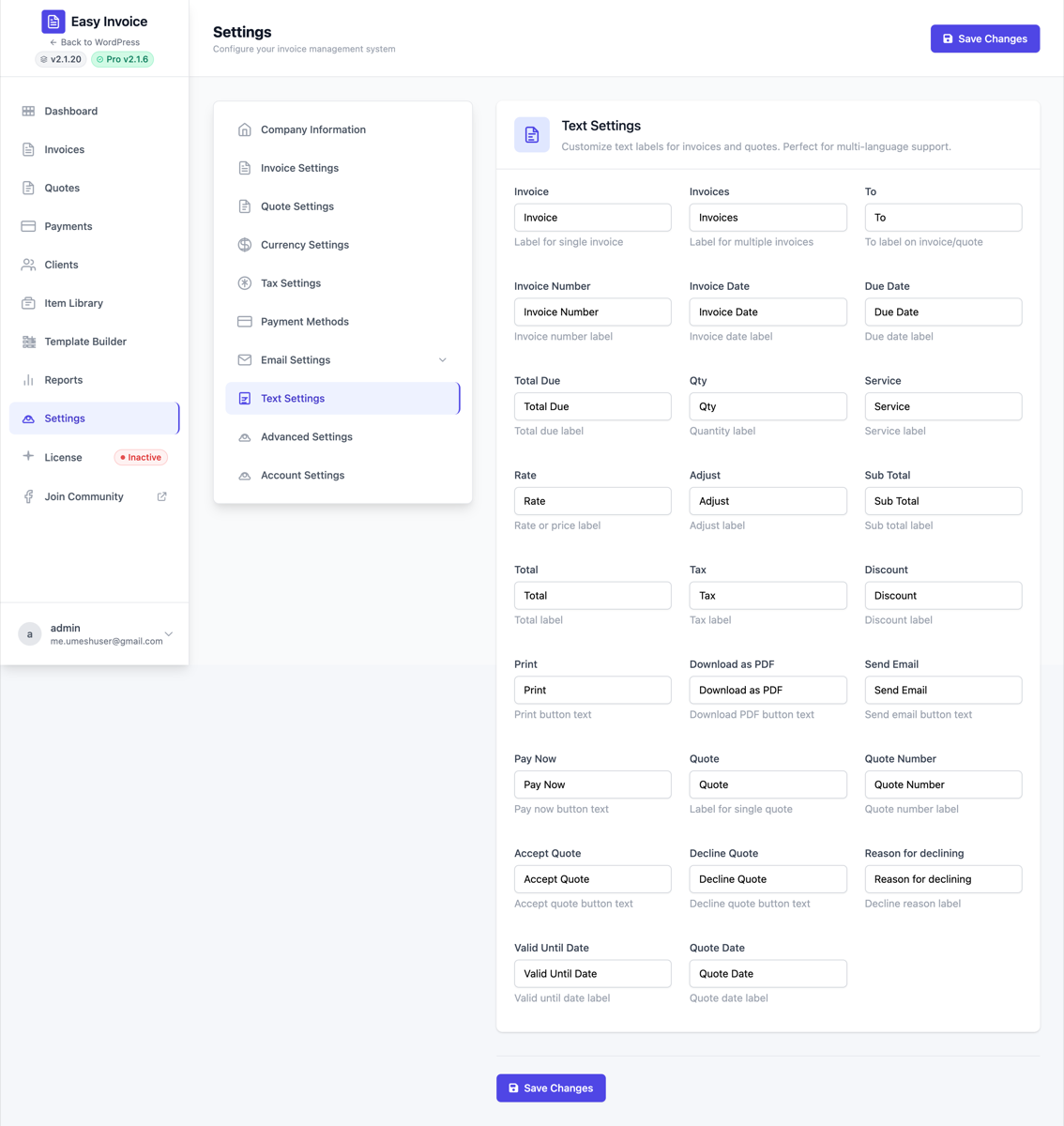
This section lets you rename every visible label on the invoice / quote / portal. It's perfect for:
- Translating to another language without touching
.pofiles - Local terminology:
Bill,Tax invoice,Devis,Presupuesto,Cotización,見積書,청구서 - Branding (
Statementinstead ofInvoice)
Invoice labels
| Setting | Default |
|---|---|
| Invoice | Invoice |
| Invoices (plural) | Invoices |
| To | To |
| Invoice Number | Invoice Number |
| Invoice Date | Invoice Date |
| Due Date | Due Date |
| Total Due | Total Due |
| Qty | Qty |
| Service | Service |
| Rate / Price | Rate |
| Adjust | Adjust |
| Sub Total | Sub Total |
| Total | Total |
| Tax | Tax |
| Discount | Discount |
Print | |
| Download as PDF | Download as PDF |
| Send Email | Send Email |
| Pay Now | Pay Now |
Quote labels
| Setting | Default |
|---|---|
| Quote | Quote |
| Quote Number | Quote Number |
| Accept Quote (button) | Accept Quote |
| Decline Quote (button) | Decline Quote |
| Reason for declining | Reason for declining |
| Valid Until Date | Valid Until Date |
| Quote Date | Quote Date |
9. Advanced Settings
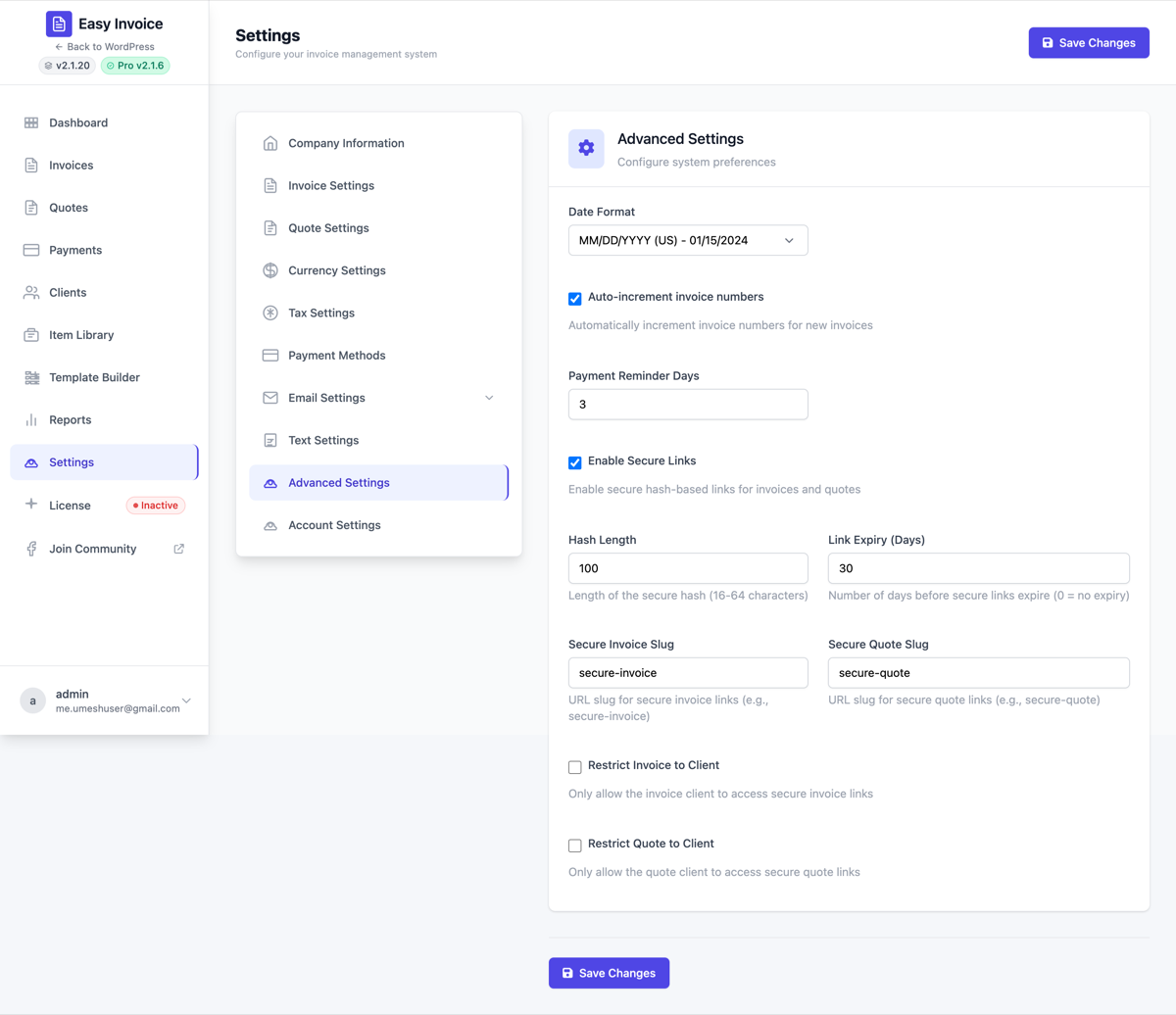
| Field | Default | What it does |
|---|---|---|
| Date Format | MM/DD/YYYY (US) | Three preset formats: MM/DD/YYYY (US), DD/MM/YYYY (UK), YYYY-MM-DD (ISO). |
| Auto-increment invoice numbers | Yes | When on, every new invoice automatically gets the next number. Turn off only if you want to enter numbers manually. |
| Payment Reminder Days | 3 | Legacy / free reminder offset (deprecated when Pro's reminder engine is enabled). |