
Clients & Client Portal
Every invoice and quote in Easy Invoice is sent to a Client. Clients are stored separately from your line items so you don't have to retype their address each time.
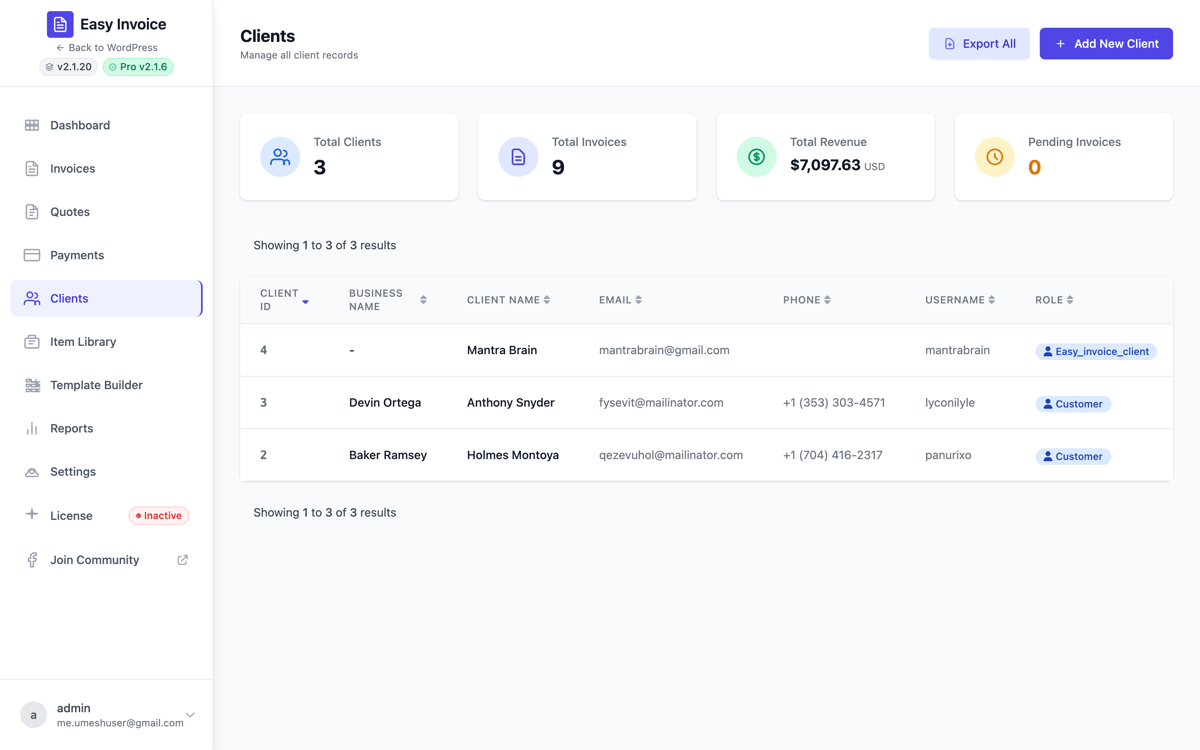
WP Admin → Easy Invoice → All Clients.
1. Add a Client
WP Admin → Easy Invoice → All Clients → Add New Client.
Identity fields
| Field | Why |
|---|---|
| First Name | The contact person's first name. |
| Last Name | The contact person's last name. |
| Business Name | Their company name. If empty, invoices show First + Last. |
| Where invoice/quote emails go. Required if you want to send emails. | |
| Phone | Optional. Printed on invoices. |
| Website | Optional. Printed on invoices. |
Billing address
| Field | Why |
|---|---|
| Address Line 1 / 2 | Street address printed on the invoice. |
| City / State / Postal Code / Country | Required in most countries for tax compliance. |
Tax / VAT
| Field | Why |
|---|---|
| Tax ID / VAT Number | The client's VAT/GST number — required when issuing tax-reverse-charge invoices in the EU, reciprocal compliance in Canada, etc. On the invoice builder a Check with VIES button verifies EU numbers against the Commission's register. |
Shipping address (optional)
A second address used for B2B clients who have a separate "ship to" location.
Notes (private)
Internal notes — never shown to the client. Use for "prefers email over phone", "finance contact is Sarah", etc.
2. Client list view
WP Admin → Easy Invoice → All Clients:
- Search box (matches name, email, business name)
- Per-row counters: total invoices, total paid, total outstanding
- Row actions: View, Edit, Statement, Delete
Click View to open a single-client overview with their full invoice and quote history.
Statement of account
Statement answers the question every client eventually asks — what do I owe you? — on one page: every invoice, payment and credit note in date order with a running balance, and a balance brought forward when you narrow the date range. Download PDF produces the same statement as a document you can send. Sending one statement listing three unpaid invoices gets you paid faster than three reminders.
Deleting a client keeps their payment records — they are part of your accounts even when the client is gone.
3. The Client Portal PRO
The free plugin sends invoices via email links — clients view, pay, and download from those links. Easy Invoice Pro adds a hosted Client Portal where clients can:
- Log in with their email
- See all their invoices and quotes in one dashboard
- Download PDFs
- Pay any open invoice
- Track payment history
- Update their profile
Set it up
- Activate Easy Invoice Pro.
- Create a WordPress page and add this shortcode:
[easy_invoice_profile]. - Save / Publish the page.
- Add a link to it from your main menu (e.g. My Account or Customer Portal).
When a client receives their first invoice email, Easy Invoice automatically creates a WordPress user account for them (role: Easy Invoice Client) and includes a magic login link they can click to access the portal without a password.
Available portal shortcodes
| Shortcode | What it renders |
|---|---|
[easy_invoice_profile] | The full client portal page (dashboard + invoices + quotes + profile editor). |
[easy_invoice_client_login] | A standalone login form (email + magic link). |
[easy_invoice_login] | Alias for the login form. |
[easy_invoice_url id="123"] | Renders a link to a specific invoice. |
[easy_quote_url id="456"] | Renders a link to a specific quote. |
See Shortcodes for the full reference.
Restrict invoices to logged-in clients
In the Pro Privacy settings, tick Require login to view invoices. Clients must then log in via the magic link or password before they can see any invoice. Useful for medical, legal, or financial documents.
4. On the client record PRO
Two Pro addons add panels to a client's record:
- Retainer — record a prepayment once and apply it to invoices as they come, or let new invoices settle from the balance automatically. Retainers & Prepayments
- Document language — pick the language this client's invoices, quotes, PDFs and emails are produced in. Client Language
5. Client tips
- Always set an email. Without it, the Send Email button can't do anything.
- Use Business Name for B2B clients. Invoices look more professional with
Acme Co.thanJohn Smithfor corporate clients. - Keep notes — your future self will thank you when you're trying to remember why this client always pays late.
- Tax ID compliance — in the EU, an invoice missing the recipient's VAT number for a reverse-charge transaction can be rejected by tax authorities.