
Email & notifications
Emails do the heavy lifting in invoicing — they're what actually delivers the invoice to your client. Easy Invoice gives you full control over who sends, what they send, and when it goes out.
Go to: WP Admin → Easy Invoice → Settings → Email.
The Email section has up to five sub-pages:
- General — sender, reply-to, BCC, logo, footer, test sender
- Invoice Available — sent when an invoice is published
- Quote Available — sent when a quote is published
- Payment Received — sent when a payment is recorded
- Payment Reminder PRO — automatic before/after-due-date reminders
Click any sub-page in the Email sidebar to open it.
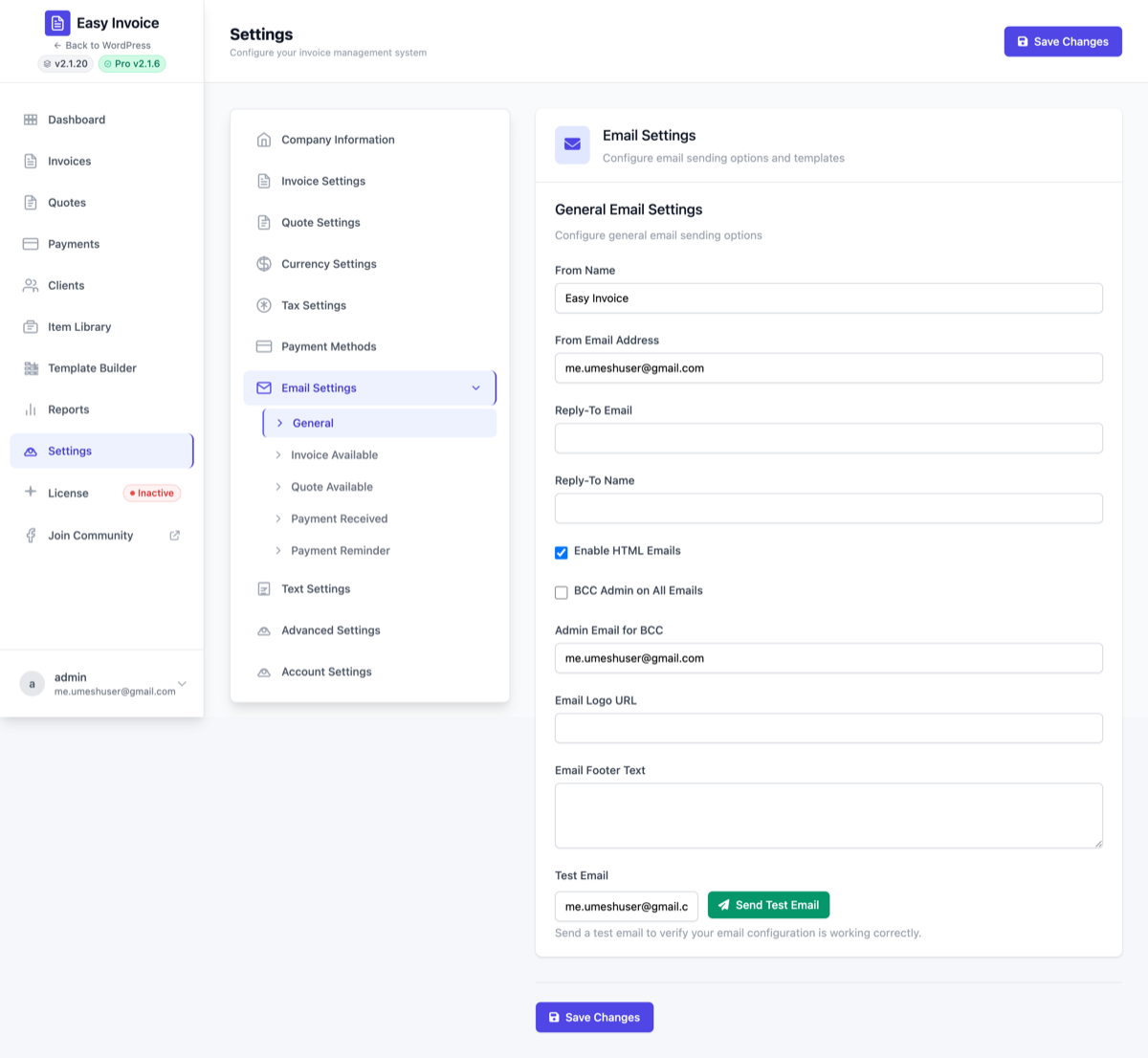
1. General email settings
These apply to every email Easy Invoice sends.
From Name
Default: Your WordPress site name. Why it matters: This is the display name your client sees in their inbox. Use your business name (e.g. Acme Co.) — not the WordPress default like "WordPress".
From Email Address
Default: Your WordPress admin email. Why it matters: This is the From: address. Use a real address on your own domain (e.g. [email protected]). Free addresses like [email protected] sent from a server that isn't Gmail's will fail SPF/DKIM and land in spam.
Recommendation: Add an SMTP plugin (WP Mail SMTP, Fluent SMTP) and point Easy Invoice at the same address so deliverability is solid.
Reply-To Email
Why it matters: If you want client replies to go somewhere different from the From: address (e.g. From = [email protected], Reply-To = [email protected]), set Reply-To here.
Reply-To Name
The display name on the Reply-To header.
Enable HTML Emails
Default: On. Why it matters: Off = plain-text only (no styling, no images, no Pay Now button). Almost everyone wants this on.
Attach a PDF copy to invoice emails
Default: Off. Why it matters: On = the invoice is rendered on the server and attached to the Invoice Available email, so the client has the document without clicking through. Off by default because it changes what every client receives and makes each message larger than some SMTP relays accept. Requires Easy Invoice 2.4.0+; developers can override per send with the easy_invoice_attach_pdf_to_email filter.
BCC Admin on All Emails
Default: Off. Why it matters: Turn on if you want a copy of every client email in your own inbox — useful for record-keeping or for forwarding to accounting.
Admin Email for BCC
The address that receives the BCC when the above checkbox is on.
Email Logo URL
Why it matters: Adds your logo to the top of every HTML email. Use a publicly-reachable URL (your WordPress logo URL works — copy it from Media Library → click your logo → Copy URL). Email clients block local file:// URLs.
Email Footer Text
Why it matters: Printed at the bottom of every email. Use it for a unified disclaimer, address, or contact line — e.g. "Acme Co. · 123 Main St · [email protected] · This email contains confidential information."
Test Email
Why it matters: Type any email address and click Send Test Email — this lets you verify SMTP works before you send a real invoice. If the test fails, fix your SMTP setup first.
2. Invoice Available email
This template is what your clients receive when you click Send Email on a published invoice.
Enable Invoice Available Email
Off = the Send Email button does nothing. Leave on unless you're using a different system to send.
Subject
Default: Your Invoice #{{invoice_number}} from {{company_name}}Why it matters: Subject lines drive open rates. Smart tags (the {{double_braces}}) get replaced with the real values.
Email Body
Full HTML rich-text editor. Default body includes:
- Header: "📄 Your Invoice is Ready"
- A highlight box with invoice number, total, due date
- Payment details summary box
- An important / warning box
- "View Invoice Online" link
- Your company signature
You can replace it entirely or just tweak. Don't remove {{invoice_url}} or the client has no way to pay.
Test Invoice Email
Sends a test using sample data ({{invoice_number}} = TEST-001, total $1,000.00, etc.) — verify your subject and body render correctly before you send a real one.
3. Quote Available email
Mirrors Invoice Available, but for quotes. Uses {{quote_number}} and {{expiry_date}} instead of invoice-specific tags.
| Field | Default |
|---|---|
| Enable Quote Available Email | On |
| Subject | Your Quote #{{quote_number}} from {{company_name}} |
| Email Body | Default template with quote summary, expiry warning, and "View Quote Online" link |
| Test Quote Email | Sends a test using sample data |
4. Payment Received email
Sent automatically when a payment is recorded (manually or via webhook).
| Field | Default |
|---|---|
| Enable Payment Received Email | On |
| Subject | Payment Received - Invoice #{{invoice_number}} |
| Email Body | Default thank-you template with payment details (amount, date, method, transaction ID) |
| Test Payment Email | Sends a test using sample data |
Why this email matters more than you think: Clients sometimes forget they paid. A clear receipt with the transaction ID prevents disputes and saves you support time.
5. Payment Reminder email PRO
The Pro plugin adds a fifth Email sub-page for automatic reminders. Easy Invoice runs a daily cron check and sends reminders matching your rules.
Enable Payment Reminder
Default: Off. Why it matters: Master switch. Off = no automatic reminders even if everything below is configured.
When to Send (multi-select)
Default: 7 days after, 3 days after, 1 day after due. Options: 30 / 21 / 15 / 7 / 3 / 2 / 1 days before due, on due date, 1 / 2 / 3 / 7 / 14 / 21 / 30 days after due.
Pick multiple to create a cascade (e.g. 7 days before + on due date + 3 days after = three reminders).
Why this matters: Studies consistently show that one polite reminder 3 days before due reduces late payments by ~30%. A second one 3 days after gets most of the rest.
For which status?
Default: Unpaid, Overdue. Options: Available, Draft, Overdue, Paid, Unpaid, Cancelled.
Only invoices currently in one of the selected statuses get reminded.
Why this matters: You don't want to remind on
Draft(you haven't sent it yet) orPaid(they've already paid).
Email Subject
Default: A friendly reminder - Invoice #{{invoice_number}}
Email Message
Rich-text editor — the body of the reminder. Default template includes:
- Friendly tone ("just a quick reminder")
- Invoice number, amount, due date highlighted
- View Invoice link
- Soft sign-off
Test Payment Reminder Email
Sends a test using sample data — use this to verify before turning on automatic sends.
Smart tags reference
Use these placeholders in any subject or body. They're replaced with real values when the email is sent.
Invoice tags
| Tag | Replaced with |
|---|---|
{{invoice_number}} | The invoice number (e.g. INV-0042) |
{{invoice_url}} | Public URL to the invoice page (where Pay Now lives) |
{{total_amount}} | Formatted total with currency (e.g. $1,200.00) |
{{due_date}} | Due date in your configured format |
{{payment_terms}} | The terms paragraph from settings |
Quote tags
| Tag | Replaced with |
|---|---|
{{quote_number}} | The quote number (e.g. QT-0007) |
{{quote_url}} | Public URL to the quote page |
{{expiry_date}} | Quote's Valid Until Date |
Client tags
| Tag | Replaced with |
|---|---|
{{client_name}} | Client's display name (business name or first+last) |
Company tags
| Tag | Replaced with |
|---|---|
{{company_name}} | Your business name |
{{company_email}} | Your business email |
Payment tags (Payment Received email)
| Tag | Replaced with |
|---|---|
{{payment_amount}} | The amount of this specific payment |
{{payment_date}} | Date the payment was recorded |
{{payment_method}} | Which gateway / method (e.g. Stripe, Manual) |
{{transaction_id}} | Gateway transaction reference |
Best practices for new users
- Set From Name + From Email first. Don't send anything to clients until these are real.
- Send yourself a Test Email from Settings → Email → General before you publish your first invoice.
- Personalize one line in each template — even "Hi {{client_name}}, thanks for your business this month!" makes a measurable difference.
- Keep
{{invoice_url}}in the Invoice Available body. That's the link to the Pay Now button. - Use BCC Admin for the first month so you have a paper trail of every client email.
Common problems
"My emails go to spam." → Your From: email isn't on your domain, or your hosting doesn't have SPF / DKIM set up. Install an SMTP plugin and use a transactional service (SendGrid, Mailgun, Postmark, Amazon SES).
"The template variables don't get replaced (I see {{invoice_number}} literally)." → Make sure the field name uses double curly braces, no spaces ({{invoice_number}}, not { {invoice_number}} or {invoice_number}).
"Test email works but real invoice emails don't." → The Enable Invoice Available Email master switch is off. Open Settings → Email → Invoice Available and tick the top checkbox.
"Payment Reminder isn't sending." → Pro feature. Confirm: 1) Pro is active, 2) Enable Payment Reminder is on, 3) at least one option in When to Send is ticked, 4) the invoice's current status matches For which status?, 5) WordPress cron is running (some hosts disable it; use a real cron job on the server).