
Secure Links for Invoices & Quotes
By default, every invoice and quote in WordPress lives at a predictable URL — something like /invoice/INV-2025-007/ or /?p=1234. That's a problem: if a competitor (or a curious customer) figures out your URL pattern, they can change the number in the address bar and read documents that aren't theirs.
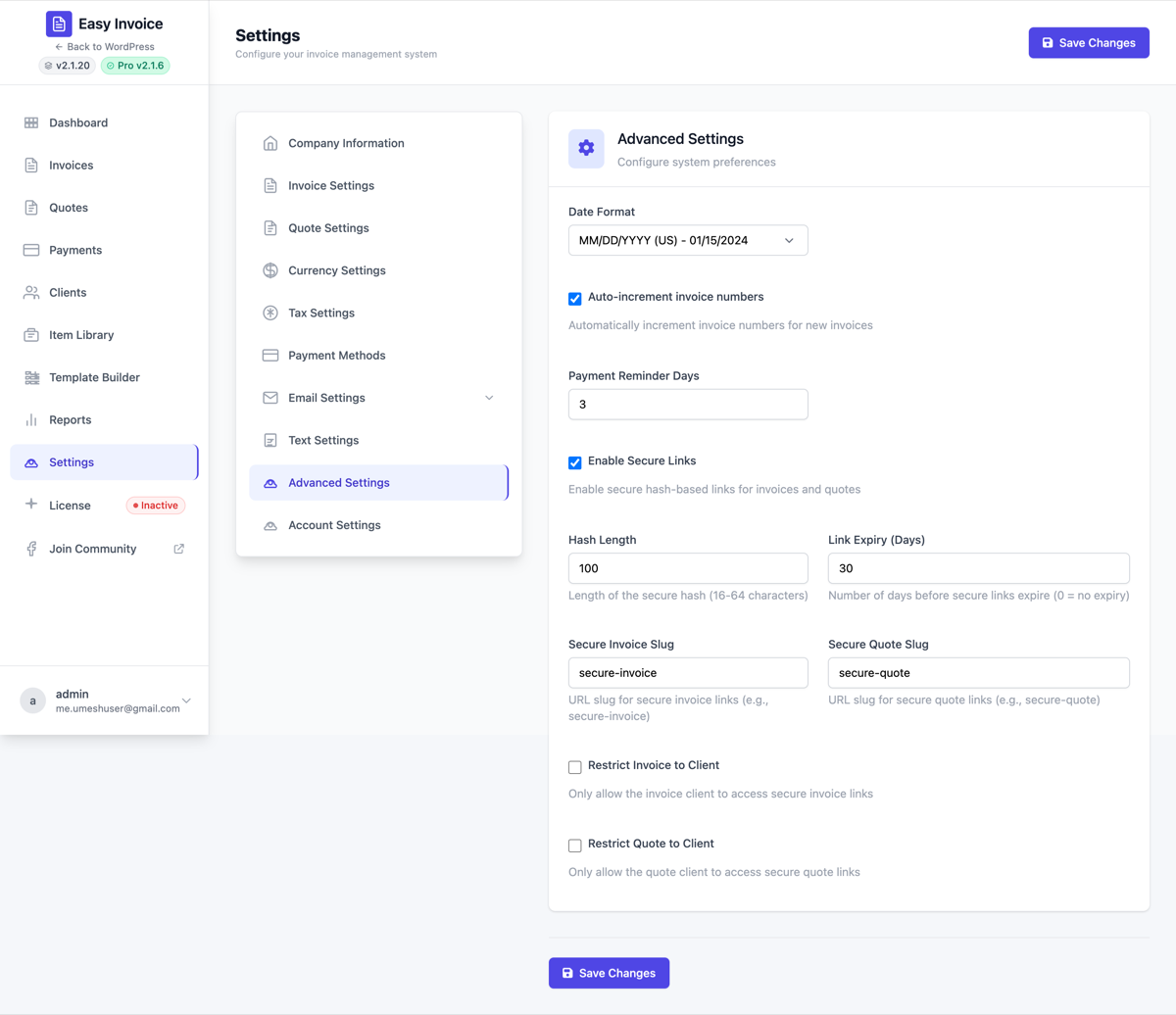
Secure Links replaces that predictable URL with a cryptographically signed, unguessable one — for example, /secure-invoice/8f2c4d1ab9e07a3f5c81d6e2913c70b6e4a5d8f.... The hash is generated from a secret stored on your site, so there's no way for anyone to guess a valid link without knowing every character.
Plain-English problem this solves
Imagine you send Invoice #1024 to Jane. Without Secure Links, the URL looks like yoursite.com/invoice/1024. Anyone who knows you also bill Acme Corp could type /invoice/1025 and possibly view Acme's invoice — including the amount, line items, and your contact details. Even with a logged-in check, the URL pattern itself leaks the existence and count of your documents.
With Secure Links enabled, Jane's link becomes yoursite.com/secure-invoice/<random-looking-string>. No one can guess 1025's equivalent because the random string is generated from a secret salt + the invoice ID + a checksum. Tamper with one character and the link 404s.
When you need this
- B2B with sensitive pricing — your competitors shouldn't be able to guess and read each other's quotes
- Confidential contractors / agencies — invoice amounts and project descriptions stay private
- GDPR / data-protection conscious businesses — no URL enumeration risk
- Anyone sharing invoice/quote links over email — the email forwarding chain doesn't leak access to other documents
If you only invoice a small handful of clients and your invoices are public anyway (e.g. donation receipts), you may not need this — the free plugin's standard URLs are fine.
Enabling
- Open Easy Invoice → Addons
- Find Secure Links for Invoices & Quotes
- Click Activate
Settings appear on Easy Invoice → Settings → Advanced under the Secure Links section.
Every setting explained
Each field is described exactly as it appears in Settings → Advanced.
Secure Links — Enable
What it does: Master on/off for the whole feature. When this checkbox is on, every invoice and quote URL emitted by the plugin (in emails, the [easy_invoice_links] shortcode, recurring child invoices, the Client Portal) gets rewritten to a signed URL. When it's off, the plugin falls back to the old predictable URLs.
Recommended: On. Once you flip this switch you generally never need to flip it back unless you're debugging.
Common gotcha: If you turn this off after emails have already gone out, the signed links that landed in your customers' inboxes will keep working (the plugin still recognises them) — it just stops generating new ones.
Secure Links — Hash Length
What it does: Controls how long the unguessable part of the URL is. The minimum is 16 characters, the maximum is 64. A 16-character hash is mathematically already impossible to guess (more combinations than atoms in a sand grain), but longer hashes look more "professional" and feel more secure.
Default: 32 characters — a clean middle ground.
When to change it:
- Make it shorter (16–24) if you're sharing links in places where space matters (SMS, business cards with QR codes).
- Make it longer (48–64) if you want the URL to look maximally secure to clients — sometimes a longer hash inspires more confidence even though it's no more secure than 32.
Plain-English: Think of it like a PIN code — 4 digits is enough to be safe, but a 12-digit code looks more secure. The math is overwhelmingly secure either way.
Secure Links — Expiry (days)
What it does: How many days after a link is generated before it stops working. After this many days, anyone clicking the link sees a "link expired" page instead of the invoice/quote.
Default: 0 (never expire — link works forever).
When to set a non-zero value:
- 30 — typical for invoices that need to be paid within a month. After 30 days, the link dies. Customers who haven't paid by then can request a fresh link.
- 7 or 14 — common for quotes. Quotes usually have a built-in validity period anyway, so matching the link expiry to the quote validity is clean.
- 0 — fine for receipts, paid invoices, or anything you want clients to be able to revisit indefinitely.
Plain-English: This is the "self-destruct timer" on the link. Useful for time-sensitive offers ("This quote is valid for 14 days"). Most users leave it at 0.
Secure Links — Invoice URL slug
What it does: The path part of the URL between your domain and the random hash. Default is secure-invoice, producing URLs like yoursite.com/secure-invoice/<hash>. Change it if you want a different brand-fit (e.g. pay, bill, i).
Examples:
secure-invoice(default) →yoursite.com/secure-invoice/8f2c…pay→yoursite.com/pay/8f2c…(short, friendly for SMS)bill→yoursite.com/bill/8f2c…view→yoursite.com/view/8f2c…
Plain-English: This is the "word" before the unguessable string. Keep it short and brandable. After you change it, WordPress needs to refresh its URL rules — visit Settings → Permalinks and click Save once.
Secure Links — Quote URL slug
What it does: Same as the invoice slug, but for quote/estimate links. Default is secure-quote.
Examples:
secure-quote(default) →yoursite.com/secure-quote/8f2c…estimate→yoursite.com/estimate/8f2c…proposal→yoursite.com/proposal/8f2c…q→yoursite.com/q/8f2c…(ultra-short)
Plain-English: Same idea as the invoice slug but for the documents your clients see before they agree to work. Many agencies use proposal/ because that's the language their clients use.
Secure Links — Restrict invoice to its client
What it does: When on, opening a signed invoice URL also checks "is the person clicking this link logged in as the client this invoice belongs to?" If yes, they see the invoice. If no (or not logged in), they're redirected to the client portal login.
Recommended: Off, unless you specifically want a login gate.
When to turn it on:
- You use the Client Portal addon and require all customers to log in before viewing anything.
- You're under a strict compliance regime (HIPAA-adjacent, finance, legal) where every document view must be tied to an authenticated user.
When to leave it off:
- You email invoices to clients and want them to click the link and view immediately, no login required. The signed hash is already strong enough that only someone with the email can open it.
Plain-English: This is a second lock on top of the unguessable URL. Most businesses don't need it — the signed URL alone is secure. Turn it on if you're already running the Client Portal and want a uniform "must log in" experience.
Secure Links — Restrict quote to its client
What it does: Same as the invoice restriction, but for quotes. Quotes often need to be reviewed by people other than the named client (a finance team member, a spouse, a partner), so this is usually safer to leave off.
Recommended: Off.
When to turn it on: If your quotes contain confidential pricing tiers that should only be seen by a specific logged-in user.
How signed URLs are generated
You don't need to know this to use the addon, but for the curious:
- The plugin combines the invoice/quote ID with a site-specific secret (stored in your WordPress options table).
- It runs that combination through SHA-256 to produce a long hash.
- The first N characters of that hash (where N is the Hash Length setting) become the URL slug.
- When someone clicks the link, the plugin re-computes the expected hash from the ID stored in the URL — if it matches, the document is shown. If even one character is wrong, the lookup fails and a 404 is returned.
The secret never leaves your server, so there's no way for anyone to generate a valid hash without access to your database.
What gets the signed URL automatically
Once enabled, every place the plugin emits an invoice/quote URL gets the signed version, automatically:
- Email notifications — the link your client clicks to view the invoice
- The
[easy_invoice_links]shortcode — used by many themes/templates - Recurring invoices — each generated child invoice gets its own fresh signed URL
- Client Portal links — every "View invoice" button
- Custom Templates — placeholders like
{invoice_url}resolve to the signed version
You don't have to edit any templates or email bodies.
Pairs well with
- Client Portal — Combine signed links with the Client Portal's login gate for two layers of access control.
- Smart Reminders — Every reminder email re-uses the signed URL so the same link works across the entire chase sequence.
- Recurring Invoices — Each generated child invoice gets a fresh signed URL, so a single recurring schedule produces unique unguessable links each cycle.
Troubleshooting
"My signed URL returns a 404" Visit Settings → Permalinks in your WordPress admin and click Save Changes once (no fields need editing). This refreshes the URL rewrite rules so WordPress knows about the new secure-invoice/<hash> pattern.
"I changed the URL slug and now old links don't work" That's expected. Old links contain the old slug (e.g. /secure-invoice/<hash>), so once you change the slug to /pay/, the old links won't resolve. Either re-send the email (which generates fresh URLs) or keep your slug stable from the start.
"Some of my links expired and I want to extend them" Set Expiry (days) back to 0 (never) — already-issued links that hadn't yet expired will start working forever again. Already-expired links stay expired, however; you need to re-send those emails to issue fresh links.
"I disabled the addon and old emailed links stopped working" Re-enable the addon. Old signed URLs only resolve when the Secure Links code is active. If you genuinely want to leave the addon off, send fresh invoices/quotes — they'll use the standard non-signed URLs.
Settings location
All Secure Links settings live on Easy Invoice → Settings → Advanced, in the Secure Links section. There's no separate admin page for this addon.
See also
- Settings reference — every Easy Invoice setting in one place
- Client Portal — the optional login gate
- Privacy & GDPR Tools — compliance helpers that pair well with Secure Links