
Item Library
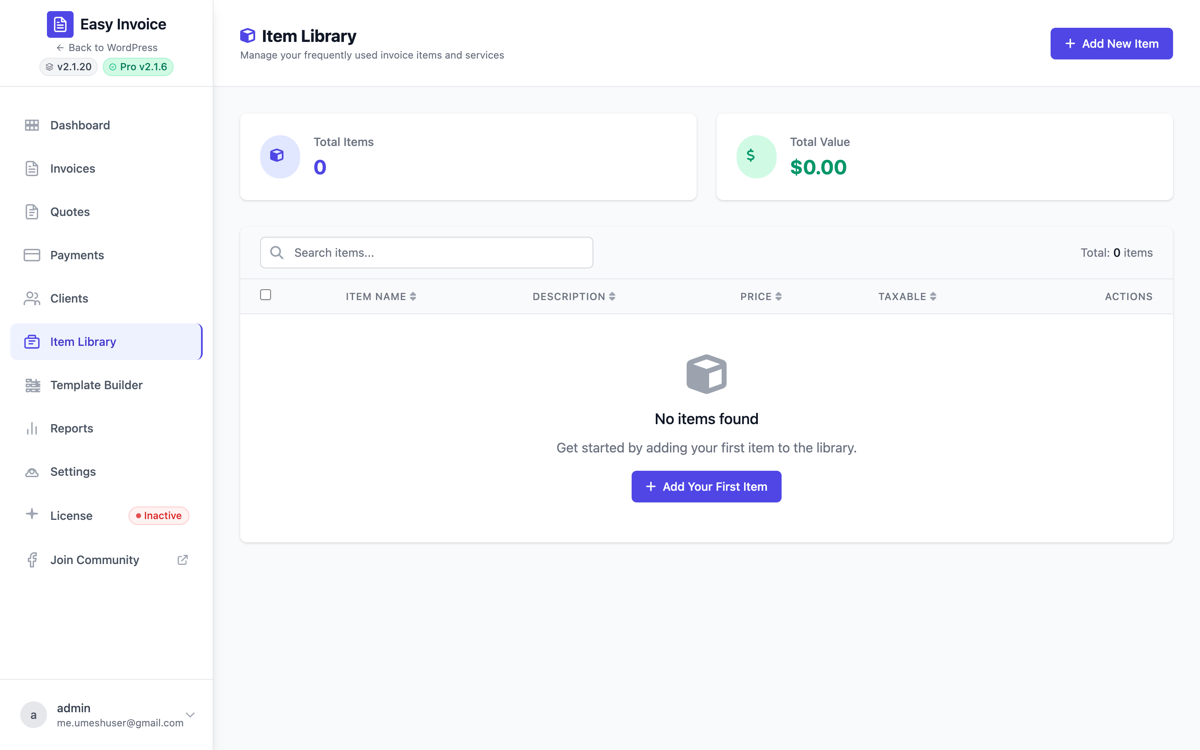
Save your common services and products once, then drop them into any invoice or quote with one click. Stop retyping the same line items and keep pricing consistent across every document you send.
When to use it
- You bill for the same services repeatedly (consulting blocks, SEO audits, design rounds)
- You sell a fixed catalog of products (digital downloads, courses, physical goods)
- Different team members create invoices and you want them all using the same pricing
- You're tired of typo'd descriptions and inconsistent rates across invoices
Enabling
- Open Easy Invoice → Addons
- Find Item Library
- Click Activate
A new Item Library entry appears in the Easy Invoice in-app sidebar (below the Addons menu). That's your catalog.
Adding items
Each item has:
| Field | Required | What it does |
|---|---|---|
| Name | ✓ | The line item label (shown on the invoice) |
| Description | optional | Longer description shown under the line item |
| Price | ✓ | Default unit price; can be edited per-invoice |
| SKU | optional | Your internal product code (handy for accounting reconciliation) |
| Tax category | optional | Pairs with the Additional Tax Lines addon for mixed-rate invoices |
You can also tag items, set them as taxable / non-taxable, and group them visually.
Inserting into invoices
On the invoice and quote builders, the line-item row gains an Item Library button (book icon). Click it to search your library by name or SKU, pick an item, and it inserts with the saved name, description, and price. You can still edit the values on that specific invoice without affecting the library entry.
There's also a Save to Library button (bookmark icon) that lets you save any in-progress line item back to the library for future reuse.
Importing sample items
First time using the addon? The library page has an Import sample items button that creates a starter catalog with common service items (hourly consultation, project setup, monthly retainer, etc.) so you can see how it works before building your own.
Bulk operations
The library page supports bulk actions:
- Delete selected items
- Update price by % or flat amount
- Export to CSV (also handled by the Bulk Operations addon when active)
Settings location
The Item Library has its own dedicated admin page (reached via the Easy Invoice sidebar). All configuration is on that page — no separate settings tab.
See also
- Custom Invoice & Quote Templates — design how line items render in the PDF
- Additional Tax Lines — for multi-jurisdiction tax handling on library items